Social Icons

Showing posts with label Formating Tips. Show all posts

How to Format USB Pen Drive in Linux Mint

Sometimes we need to format USB pen drive for many causes. We know how to format USB pen drive in Windows but we may don't know how to Format USB pen drive in Linux Mint. Yes guys, formatting USB pen drive or other external devices in Linux Mint is not as easy as Windows operating system. So today I would like to share you the method of formatting USB pen drive in Linux Mint. So follow the instructions bellow.

Format USB Pen Drive in Linux Mint

There are many ways to format Pen drive in Linux mint but I'm sharing you the easiest way in bellow
  • First of all you have to install GParted using bellow command 
sudo apt-get install gparted
  • Now Go Menu > Administration > GParted
  • In the GParted toolbar click on GParted > Devices 
  • Select your USB Pen Drive device ( you can also select other external devices for formatting)
  • Now click Partition > Format to. ( Before formatting you need to Unmount it.)
  • Select appropriate file system
  • At last click Edit in GParted toolbar and then select Apply All Operations.
  • You are done successfully. 

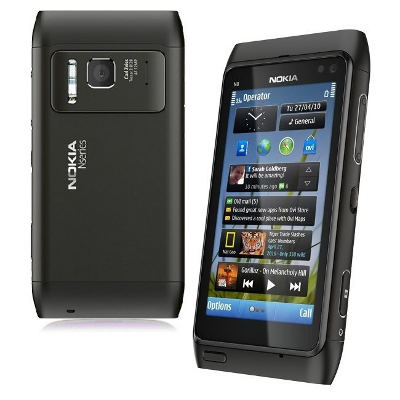
How to Format to Default Nokia N8 Complete Step?

Nokia N8 is symbian smartphone with full touch screen to navigate everything. Nokia N8 have the specification bellow:
LCD 3.5 inchi with AMOLED display
Processor 680 MHz ARM 11
Memory Internal 16 GB storage, 512 MB ROM with 256MB RAM
Camera 5 MP, autofocus, LED flash
Camera 12 MP, 4000×3000 pixels, Carl Zeiss optics, autofocus, Xenon flash
Operating System Symbian OS can be upgradable to Nokia Belle Refresh


Troubleshooting Nokia N8
How to Hard Reset and Format Nokia N8 to Factory Default?
If you think some problem happen at our Nokia N8, better to try doing factory reset. To do thins make sure everything already backup such as contact and other data. There are several way to Factory Reset Nokia N8:
# Option One, Reset Nokia N8  using default menu
Nokia N8 have already have the factory default facility at main menu, try to do it when we still can operate Nokia N8 before reset:
Menu > Settings > Phone > Phone mgmt > Factory Setting > Delete Data and Restore

# Option two, Reset Nokia N8 using Dial Pad Key
  1. Turn On the Nokia N8
  2. Ready at dial or phone position
  3. Input the keypad with *#7370# then choose YES
  4. If Nokia N8 ask for phone lock, use default 12345

# Option three, Reset Nokia N8 Using hardware key (this is dangerous, read carefully before do this)
If you can not open any menu or Nokia N8 stuck and can not start anything, the last change that you can do is reset it using hardware key, but this step will erase everything and all data will empty such as Ovi application. So consider carefully before doing option three (hardware reset)
  1. Turn off the Nokia N8
  2. Press and Hold together “VOLUME DOWN + CAMERA BUTTON + MENU BUTTON + POWER BUTTON
  3. do not release the button at step 2 until Nokia N8 vibrate and the screen will appear again
  4. Finish to reset to factory default Nokia N8

What Should  I  do if the Security Code is not working or if I forget the Nokia Security Code? Well better to go to nearest Nokia Service Center to ask for help.
The information from this page describe about nokia carl zeiss hard reset,nokia n8 security code reset,how to format nokia n8,how to reset a nokia carl zeiss,how to reset nokia carl zeiss,nokia carl zeiss reset,nokia n8 hard reset,how to reset nokia n8 security code,nokia n8 security code,how to hard reset nokia carl zeiss. If you need another resource for hard reset, use search function at this homepage or find from our related posts.

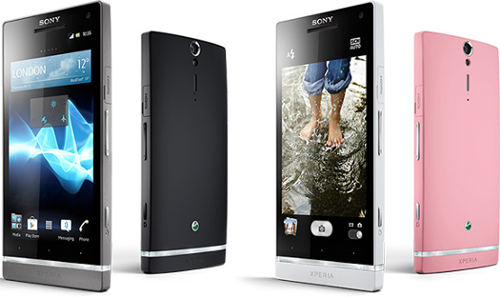
How to Easily Master Format SONY XPERIA SL

Problem solving for SONY XPERIA SL LT26ii trouble. Android smartphone SONY XPERIA SL LT26ii have 4.3 inches LCD screen with dual core processor with 1.7Ghz speed make this smartphone become easy to use and good camera 12 megapixel also advantages for SONY XPERIA SL LT26ii user who like to take good picture while traveling or at important moment.

What is Advantage of SONY XPERIA SL LT26ii Specifications:
GSM 3G HSDPA
LCD 4.3 inches with Scratch-resistant shatter proof glass
Sony Mobile BRAVIA Engine
Internal memory 32 GB
RAM 1GB
Main Camera 12 MP, 4000×3000 pixels, autofocus, LED flash
Dual-core 1.7 GHz
GPU Adreno 220
Operating system Android OS, v4.0 (ICS), upgradable to v4.1.2 (Jelly Bean)
Battery Li-Ion 1750 mAh


How to Solve Problem and Recovery if SONY XPERIA SL LT26ii get hang or not responding or malfunctions or stuck or freezing or bricked ?
AS we seen in the specifications of SONY XPERIA SL LT26ii is good enough to run applications that we can download directly from Google Play Store. RAM 1GB already big for multitasking. But please becareful because not all applications is compatible with our SONY XPERIA SL LT26ii, some applications also contain mall ware or virus or some special code which can make our smartphone become not smooth or hang or bricks or frozen or the LCD touch screen become not responsive. In this case we need to try deleted same suspicious applications, and try to soft reset or reboot the SONY XPERIA SL LT26ii to delete temporary files and cache. If problem still appear in SONY XPERIA SL LT26ii then we need to do master format with hard reset.

How to Soft Reset or Reboot or Restart SONY XPERIA SL LT26ii ?
It is easy to doing this step. Press the POWER BUTTON KEY for several seconds, we will see the menu to restart or turn off. Choose restart/reboot than the SONY XPERIA SL LT26ii will do the soft reset or restart. This is safe to do because all data or installed applications will not removed.

#Option 1, Hard Reset SONY XPERIA SL LT26ii with Software Menu :
  1. Make sure the battery is charge properly
  2. Turn on SONY XPERIA SL LT26ii smartphone
  3. Don’t forget to backup all important data
  4. Go to menu: Setting > Backup & reset > Factory Data Reset > Reset Phone 
  5. Choose Erase everything to continue and confirm you ready to do the format SONY XPERIA SL LT26ii
  6. The SONY XPERIA SL LT26ii will continue the step until ready to use in clean factory default.

#Option 2, Hard Reset SONY XPERIA SL LT26ii with Flashtool applications:
  1. Flashtool in the applications from Sony can be download from Sony website.
  2. Flashtool software nedd to  installed in you computer and ready with USB data cable
  3. Make sure SONY XPERIA SL LT26ii battery is charge properly or full charge
  4. Power off SONY XPERIA SL LT26ii
  5. Boot SONY XPERIA SL LT26ii to flashmode with using: Volume Down Button and connect to USB cable at No.1 above
  6. Follow the menu at you computer display, it is easy to understand the steps.

#Option 3, Hard Reset SONY XPERIA SL LT26ii with Hardware Key Button:
  1. Make sure the battery fully charge
  2. Do not forget to backup all important data
  3. Turn off the SONY XPERIA SL LT26ii
  4. Press and Hold together: Power Button + Volume Up Button for several seconds
  5. Follow the menu at LCD screen to continue the hard reset SONY XPERIA SL LT26ii

How to Restore and Reinstall Clean Android Operating system / firmware at SONY XPERIA SL LT26ii ?
Android default and clean source operating system already saved at SONY XPERIA SL LT26ii internal ROM, this location is safe because by normal format it will not removed from ROM. If the SONY XPERIA SL LT26ii need to be reinstall or restore with clean and factory default setting operating system, than what we need to do is only force to hard reset or master reset with format step above, after that operating system SONY XPERIA SL LT26ii will reinstall automatically.

How to Unlock or Fix or Bypass or Solutions for SONY XPERIA SL LT26ii forgot password code or security lock screen pattern or pin?
To make our SONY XPERIA SL LT26ii become more safety while away from us, we can give security protection such as security password pin or screen lock pattern (maybe there are other options, but it will same step to bypass it). If we forget about the security password pin or screen lock pattern, we can try to find Forget Password / Pattern button to insert our username and password of Google account which already in SONY XPERIA SL LT26ii. If we can not access the username and password of SONY XPERIA SL LT26ii then we need to hard reset with master format above.

How to Improve Performance SONY XPERIA SL LT26ii to make run more faster?
Do you ever think that our SONY XPERIA SL LT26ii become more slowly and sometime always said to wait or close? This situation happen because there are a lot of applications running in background process, although we know that SONY XPERIA SL LT26ii have good processor and big memory RAM, but some applications may took a lot of memory resource than it will make the SONY XPERIA SL LT26ii become slowly or act not normal. To solved this problem, we need to fresh the setting and applications with hard reset.

Is That Any Secret Code for Doing Format SONY XPERIA SL LT26ii?
There is no secret hidden code for SONY XPERIA SL LT26ii to make it back to factory default. Do the options above to hard reset it.

Can I Upgrade SONY XPERIA SL LT26ii with Updated Operating System (update new firmware) ?
Yes the SONY XPERIA SL LT26ii can be upgraded. When the first time release, SONY XPERIA SL LT26ii use Android with ICS 4.0 operating system, but now the official Jelly Bean operating system ready to update.
The information from this page describe about xperia sl format & reinstall os. If you need another resource for hard reset, use search function at this homepage or find from our related posts.

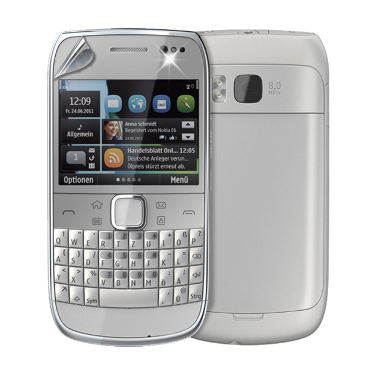
How To Format Nokia E6 With Easy Way

Nokia E6 is born to continue the advantage of Nokia E5, this still same full qwerty smartphone and also powerd by Symbian operating system Symbian Anna OS and Nokia Belle OS. Nokia E6 have capacitive touch screen with multi touch.

The Main Advantage of Nokia E6 Specifications:
GSM 3G – HSDPA
LCD 2.46 inch Capacitive Touch Screen
Full Qwerty Keyboard
Operating System Symbian Anna OS, upgradeable to Nokia Belle OS
Main camera 8 MP, 3264×2448 pixels, fixed focus, dual-LED flash
Internal Memory 8 GB storage + 1 GB ROM
RAM 256 MB
Processor 680 MHz ARM 11
Battery Li-Po 1500 mAh (BP-4L)


How to Solved Nokia E6 Problem Hang or Stuck or Freezing ?
Nokia E6 use Symbian Anna OS and some Nokia E6 user already upgrade the operating system to Nokia Belle OS. In special case, some Nokia E6 become slowly work and get problem like hang or stuck or freeze or not responding. In this case, we suggest to do soft reset or reboot Nokia E6. If Nokia E6 still get the same problem, better to try flash or hard reset Nokia E6.

How to Soft Reset Nokia E6 with Secret Security Code:
Doing the Soft Reset of Nokia E6 while it work strange or slowly is highly recommended. Soft Reset Nokia E6 will not delete any data which already saved in this phone. Nokia E6 will only restore the setting to default and every data will safe. Press *#7780# with dial pad to Soft Reset Nokia E6.

#Option 1, Hard Reset Nokia E6 with Software Menu:
  1. Turn On Nokia E6
  2. Go to Menu:  Menu > Settings > Phone > Phone management > Factory settings > Delete data and restore
  3. Nokia E6 will ask the default security lock code is: 12345
  4. Please remember, Format Factory Default Nokia E6 will erase or wipe all important data

#Option 2, Hard Reset Nokia E6 with Hardware Button Combinations Key:
  1. Make sure you already backup all important data at Nokia E6
  2. Always better to make Nokia E6 battery full charge
  3. Turn On Nokia E6
  4. Press and hold together: * button + 3 button + Green button (Call Button) for several seconds
  5. The process will do format to factory default Nokia E6

#Option 3, Hard Reset Nokia E6 with Secret Security Code:
  1. Make Sure Nokia E6 battery is not empty and charge properly
  2. Turn on Nokia E6
  3. Press at Dial pad: *#7370# and wait
  4. Nokia E6 will ask for default security code, enter: 12345
  5. Nokai E6 will do format to factory default

How to Fix  forgot or Lost Nokia E6 Default Security Code or Password?
If you never change the Nokia security code is 12345, if you forget or you ever replace or make changes to security code, then you have to bring Nokia E6 to the nearest authorize service center.

How to Flash and Restore Nokia E6 easily?
If you have problem with Nokai E6, you can try to do soft reset and if the problem still at your Nokia E6, then continue with doing hard reset or format to factory default with some options step above.

How to Restore Clean Setting at Nokia E6 Reinstall the Operating System?
You have choose 2 way for installing clean Nokia E6, or maybe we can said how to reinstall clean operating system for Nokia E6. First way is doing the soft reset without clean up the data at Nokia N6. The second way is doing hard reset to restore original operating system Nokia E6.

Help for Slow Respon Nokia E6, How to Make Nokia E6 Run Faster?
Some applications or wrong setting could make Nokia E6 become slowly. To make Nokia E6 run more faster and powerful, then you have to try doing Soft Reset to make all setting back to default. You can find how to do Soft Reset above.

The information from this page describe about default security code for nokia e6,nokia e6 hard reset,How to format Nokia E6,how to master format nokia e6 without password,security code nokia e6,how to unlock nokia e6 security code,how to format e6 nokia without code,nokia e6 lock code reset,nokia e6 hard reset without code,nokia e6 reset passwod code. If you need another resource for hard reset, use search function at this homepage or find from our related posts.

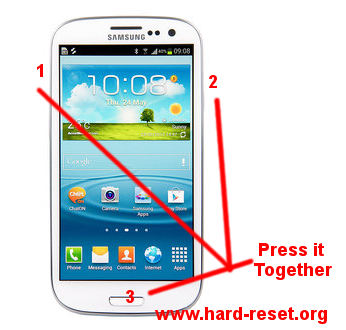
How To Safety Factory Reset Samsung Galaxy S3

When using smartphone sometime we get problem like hang or not responding in Samsung Galaxy S3 (i9300). This is very terrible because we can not use Samsung Galaxy S3  properly.
Here is the specification of Samsung Galaxy S3 smartphone:
LCD 4.8 inchi
Processor Quad-core 1.5 - Exynos 4412 Quad
Memory Internal 16GB/32GB ROM with 1GB RAM
Camera 8 MP,  autofocus, LED flash
Camera Resolution 3264×2448 pixels
Operating System Android v4.0.4 (Ice Cream Sandwich), upgradeable to 4.1.2 (Jelly Bean)
In this manual, will talk about easy step to hard reset or format to factory reset Samsung Galaxy S3 (i9300). Please remember, when we decided to format Samsung Galaxy S3, the data and downloaded application will be removed and back to default application, that’s why we always suggest to make backup before doing the Factory Reset Samsung Galaxy S3. You do not need any code to force format Samsung Galaxy S34, just follow the simple step bellow.
How to Erase and Format to Factory Reset Samsung Galaxy S3?
#Option 1: Hard Reset Samsung Galaxy S3 with software Menu.
When we still can access the Setting menu from Samsung Galaxy S3, we can perform the hard reset by using:
Menu > Setting > Privacy > Factory Data Reset > Reset Phone 
When we choose Reset Phone, the warning will be appear and make sure you understand that all data will be erase or deleted. The data you have to backup before is : Contact / SMS / downloaded Application and others.

#Option 2: Hard Reset Samsung Galaxy S3 with Hardware Key
When we can not access any menu at our Samsung Galaxy S3, something that we can do more is just pressing secret key to format hard reset Samsung Galaxy S3. Please do this step carefully because all data will be erase while doing this format method.
  1. Turn off the Samsung Galaxy S3 or Remove the Battery
  2. Make sure our Samsung Galaxy S3 in off condition and the battery already in the position.
  3. Press together and hold : VOLUME UP + HOME + POWER BUTTON until the screen appear menu
  4. Choose : Wipe data / Factory Reset with VOLUME DOWN and press POWER to choose ok / enter
  5. Finish, all data will be removed and the Samsung Galaxy S3 will format by itself to factory default.

#Option 3: Hard Reset Samsung Galaxy S3 with using secret code
This is another way to reset Samsung Galaxy S3 (i9300), but please be careful using special secret code, because some step will make Samsung directly reset without any confirmation, of course this will make your data suddenly remove or disappear.
Secret Code for Factory Reset Galaxy S3:    *#7780#
Secret Code for Full Factory Reset:    *2767*3855#
Please becareful using security secret code, your data will remove from your phone, think before you do this.

FAQ to Hard Reset Samsung Galaxy S3 :
When will We Need to Format Factory Reset Samsung Galaxy S3 ?
Samsung Galaxy S3 need to be format when we can not use it properly or sometime because of something we can not touch or run anything in our Samsung Galaxy S3

Is It Safe to Format Factory Reset Samsung Galaxy S3?
Yes it is safe, as far as we use 2 option above

Is My Data Will Be Removed after Format Factory Reset Samsung Galaxy S3?
All data and application will be removed from Samsung Galaxy S3. Only saved data in external memory card will stay in the position. But we still recommended to unplug the external memory card before doing the factory reset Samsung Galaxy S3

What to do if I forgot Samsung Galaxy S3 Security Password or Pin or Screen Lock Code?
You can try to use forget password choice in Samsung Galaxy S3 i9300 for login with Gmail account which already active in the SGS3, but if you can not access the Gmail account, unfortunately you have do the hard reset or restore Samsung Galaxy S3 i9300 to factory default with step above.
The information from this page describe about i9300 hard reset,samsung i9300 hard reset,hard reset i9300,hard reset samsung i9300,samsung galaxy s3 i9300 hard reset,how to format s3,hard reset galaxy s3 i9300,i9300 factory reset,i9300 format,hard reset samsung galaxy s3 i9300. If you need another resource for hard reset, use search function at this homepage or find from our related posts.

How to Format Factory Default Samsung Galaxy Note N7000 with Easy Step?

Samsung already introduce Galaxy Note with name code GT-N7000. As a smartphone some user get problem this Samsung Galaxy Note such as not responding, not responsive, hang, stuck in some application, no action in touch screen, frozen, forget the secret pin, or forget the pattern and other problem.
When we are sure that nothing can not do anymore, than hard reset or format to factory reset for Samsung Galaxy Note is the last final recommended action to do.

How to Factory Default or Hard Reset Samsung Galaxy Note GT-N7000?
#Option 1: Hard Reset Samsung Galaxy Note with software Menu.
In some condition, we can access the setting menu of Samsung Galaxy Note, than this format can be done using recommended way:
Menu > Setting > Privacy > Factory Data Reset > Reset Phone 
When we choose Reset Phone, the warning will be appear and make sure you understand that all data will be erase or deleted. The data you have to backup before is : Contact / SMS / downloaded Application and others.

#Option 2: Hard Reset Samsung Galaxy S3 with Hardware Key
This option can be done when we can not go to the menu anymore or stuck or frozen in Samsung Galaxy Note, using hardware key is easy to do
  1. Turn off the Samsung Galaxy Note and make sure the battery is not empty
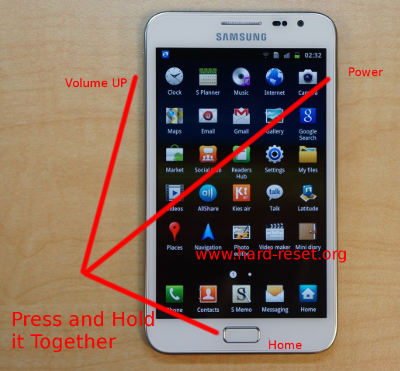
  2. Press together and hold : VOLUME UP + HOME BUTTON + POWER BUTTON until the screen appear Android logo and menu
  3. Choose : Wipe data / Factory Reset with VOLUME DOWN and press POWER to choose ok / enter
  4. Finish, all data will be removed and the Samsung Galaxy Note will format by itself to factory default.
Remember to always make sure your data already backup properly, because doing the factory reset will erase all of your important data. Do it carefully.
The information from this page describe about n7000 hard reset,how to format galaxy note,samsung galaxy note gt-n7000 secret codes,hard reset n7000,how to format samsung note n7000,samsung n7000 hard reset,how to format samsung galaxy note gt-n7000,how to format galaxy note n7000,samsung galaxy note format code,samsung note format code. If you need another resource for hard reset, use search function at this homepage or find from our related posts.

How to Format Nokia Lumia 920 100% Tested

 Simple To Format Nokia Lumia 920 
to format your Nokia lumia 920 windows phone mobile follow the tips:
first method:
go to Start menu>Settings>About>Reset your phone
second method :
1-disconnect the charger if it is connected
2-turn off your phone
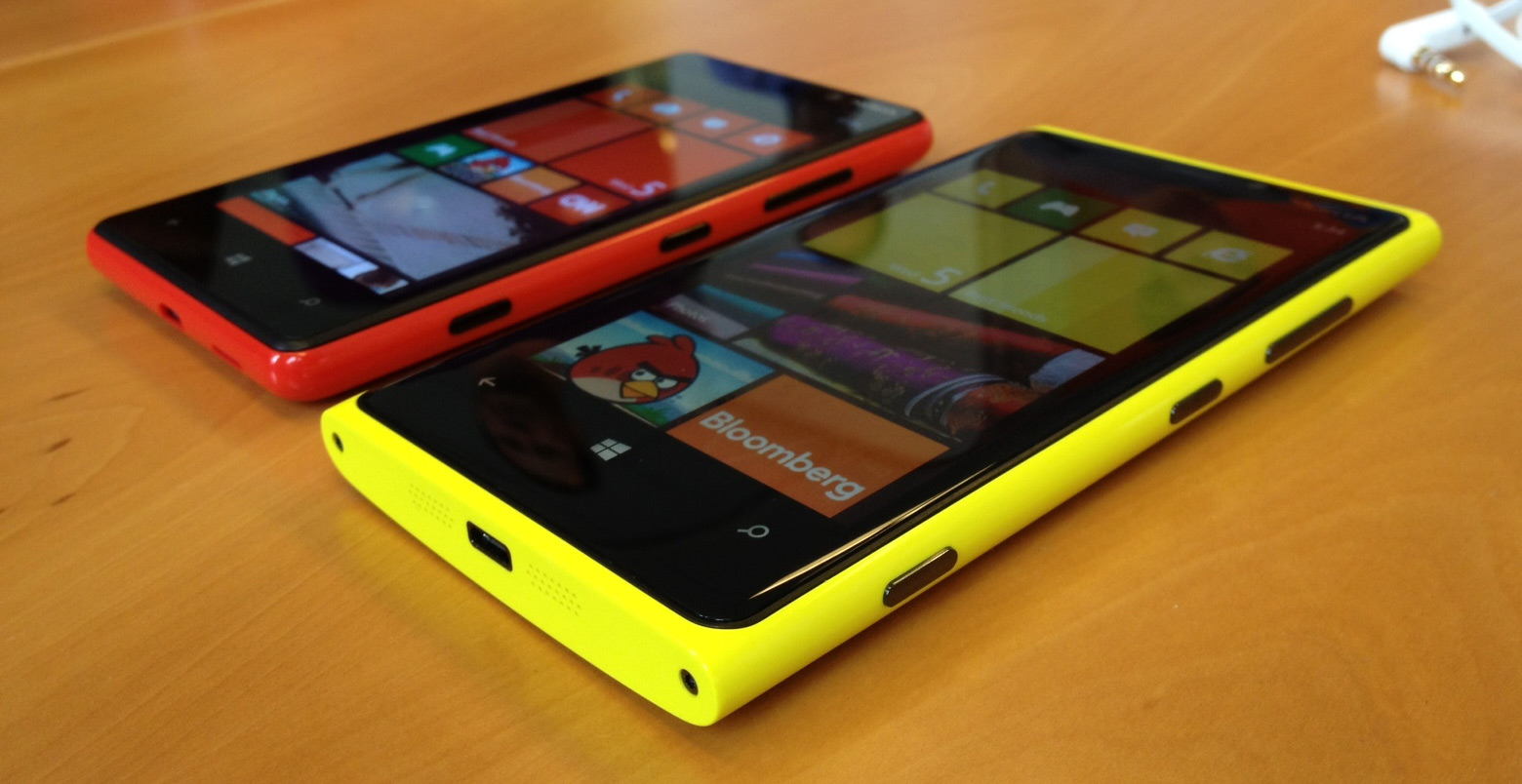
3-press and hold the volume down +connect the charger if it is OK theexclamation mark will appear (!)
4-press the following buttons in the order below:
  • volume up
  • volume down
  • power
  • volume down
5-wait for the process to finish , the phone will start automatically

Flags

Flag Counter